
Short Dramas
CineJoy Subtitles: How to Turn On, Resize and Fix Them on Android
Turn CineJoy subtitles on, pick a language, resize the text, and fix sync or missing captions, with offline tips for downloaded episodes on Android.
 By Aisha Rahman · Entertainment App Reviewer
CONTENTS On this page
CineJoy is built for short, sharp viewing, and subtitles are what make that viewing work in a second language, on a noisy bus, or late at night with the sound low. The controls sit inside the player, not in a separate settings maze, and once you know the three places they live you can fix almost any caption problem in under a minute. The steps below walk through turning CineJoy subtitles on, picking a language, sizing the text for your eyes, and fixing sync and missing captions, starting from the CineJoy APK player itself.
Turn subtitles on in the player
Open any episode and tap the screen once to show the player controls. Look for the captions icon, usually shown as a small speech bubble or the letters CC, near the play controls. Tap it once and CineJoy subtitles appear at the bottom of the picture. Tap it again to hide them. The setting sticks for that series, so the next episode opens with captions already on, which saves you repeating the tap every few minutes. If the icon is missing, tap the screen again, because some players hide the controls after a few seconds of untouched playback. That single tap solves most reports of subtitles not working, because the captions were never switched on in the first place.
Pick the right subtitle language
With captions on, open the same captions menu and look for the language list. CineJoy subtitles are offered in the languages the episode was prepared with, so the list changes from title to title, and a language present on one series may be absent on another. Pick the language you read fastest in, not the language you think you should practise, because short drama moves quickly and a caption you chase is a line you miss. If your language is missing, try the next closest one you read well, and use our CineJoy search tips to find other series that carry it. Changing language mid episode is safe: the player swaps the caption track without restarting the scene.
Resize text and change the background
Default caption size suits a tablet held close, not a phone at arm's length, so adjust it before you settle in. Inside the captions menu, CineJoy subtitles let you step the text up or down, and on most titles you can also switch the background between a solid bar and a soft shadow. Larger text with a solid bar wins in bright rooms and on buses, where glare washes out thin letters. Smaller text with a shadow wins in a dark room, where a heavy bar blocks too much of the picture. Change one thing at a time and watch ten seconds of dialogue, because a size that looks right on a menu often feels different once actors start talking.
When subtitles fall out of sync
Out of sync captions are easy to spot: the words arrive a beat before or after the mouths move, and the story starts to feel dubbed. First pause and play again, because a brief stall can push the caption track off the audio, and a fresh start often pulls the two back together. If the drift stays, close the episode and reopen it, which reloads the caption track from the start. Persistent drift on one title only usually means that title's caption file is mistimed, not your phone, so try another series to confirm. CineJoy subtitles timing is tied to the episode file itself, so a fault that follows one series everywhere you play it is worth reporting through the app rather than chasing with phone settings.
When no subtitles appear at all
When CineJoy subtitles fail to appear, start with the simplest cause: captions switched off for that series, so tap the captions icon and check the language is actually selected rather than set to off. Next check the title itself, because not every episode carries every language, and a series with no caption track in your language will show an empty language list. If the list looks right but nothing shows, close the CineJoy APK fully, clear it from recent apps, and reopen the episode, which forces a clean load of the player and its caption track. Our CineJoy playback fixes cover the wider set of player faults in the same order. As a last resort, remove the app and set it up again from scratch, then open the same episode before changing any other setting, so you can tell whether the fresh setup fixed it.
Subtitles for downloaded episodes
Captions are most useful away from home, on a train or in a waiting room, so check them before you leave Wi-Fi behind. CineJoy subtitles travel with downloaded episodes when the caption track was included in the download, which is the usual case, but a download interrupted halfway can arrive with the video intact and the captions missing. Open the downloaded episode once while you still have a connection and confirm a line of captions appears, then you can watch offline with confidence. If captions are missing offline, delete that episode download and fetch it again on a stable connection, rather than streaming over weak mobile data to test it. Our CineJoy storage and data tips explain how to keep room for those downloads on a crowded phone.
Subtitles on a small screen without eye strain
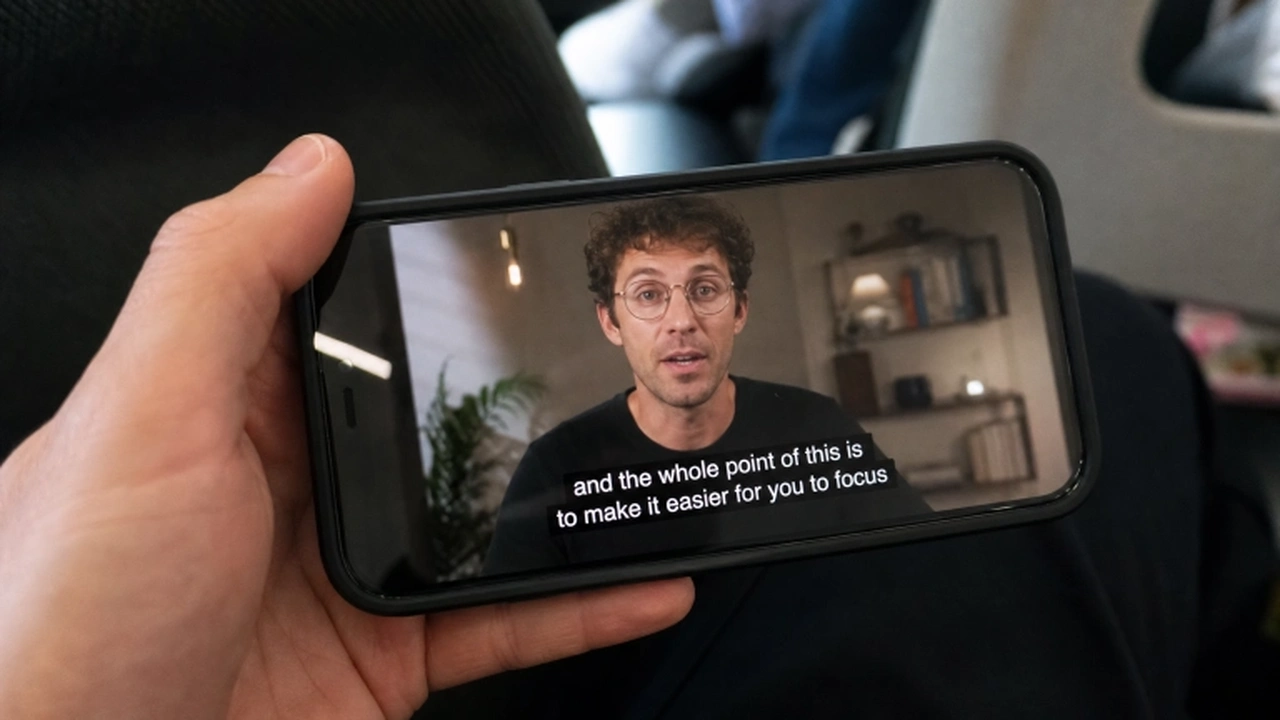
Small screens punish bad caption habits, so give CineJoy subtitles a proper phone setup rather than squinting through an episode. Hold the phone in landscape, which gives captions a wider line and fewer breaks mid sentence, and keep brightness a notch above comfortable, because dim screens blur thin caption letters first. Sit the phone steady instead of holding it at a tilt, and give your eyes a break between episodes, since reading captions for an hour straight tires eyes faster than plain viewing. If you watch in bed, prop the phone up instead of holding it above your face, which keeps the caption line at a steady distance and stops the text drifting in and out of focus.
A one minute subtitle check before you press play
Run this CineJoy subtitles check once and most caption trouble never reaches you. Open the episode, tap the captions icon, confirm your language is selected, and watch the first line land in time with the first spoken line. Then set the size for the room you are in, bright room larger, dark room smaller, and confirm the background reads cleanly against the scene behind it. If anything looks wrong, fix it now, while the episode is still at its opening, rather than ten minutes in when the plot is moving. Sixty seconds of setup buys you an episode where the words support the story instead of competing with it.
Quick Answers
How do I turn on subtitles in CineJoy?
Open an episode, tap the screen to show the player controls, tap the captions icon, and pick your language. The setting sticks for that series, so later episodes open with captions already on.
Why do CineJoy subtitles show in the wrong language?
The captions menu remembers the last language you picked, so open it and choose your language again. If your language is not listed for that title, the episode was not prepared with it, and another series may carry it.
Why are my subtitles out of sync?
Pause and play again first, then close and reopen the episode to reload the caption track. Drift that affects only one series usually sits in that title's caption file, not in your phone.
Do subtitles work on downloaded episodes offline?
Yes, when the caption track was included in the download. Open the downloaded episode once on a good connection to confirm captions appear, then watch offline with confidence.